Public Forms from Workflow
Public forms provide a means to present a narrowly scoped form specific to some context. These contexts can be generally applicable, or only pertain to a single thing.
For example, a Leave Request form that populates the Leave table in your Rapid site would be generally applicable. People can request any amount of leave at any time so a single re-usable form would serve this purpose. Alternatively, a form to Review a specific draft of a project brief would (hopefully) only need to be done once. These more specific form uses are where Workflow comes to the rescue.
Creating Public Forms
Public forms in workflow are associated 1:1 with a task. This task then controls the entire lifecycle of the form, allowing it to gracefully disappear when no-longer needed. This guide will assume you already have a Adaptive Document set up to power the form.
For this example we will set up a Job Card form. It's purpose is to track work for a maintenance team to complete when faults are flagged in their fleet of vehicles.
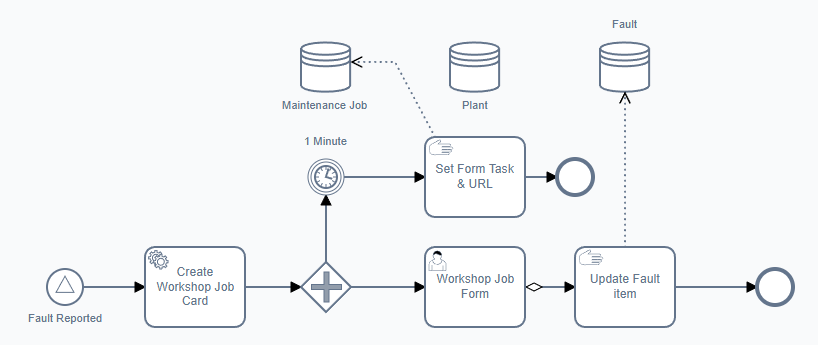
In this process we have it kick-off once a Fault item is created. It then generates the stock Workshop Job Card item, this is done for reporting and tracking purposes and is not required for the Public Form.
Note the User Task 'Workshop Job Form'; this is the task that will be generating our Public Form.
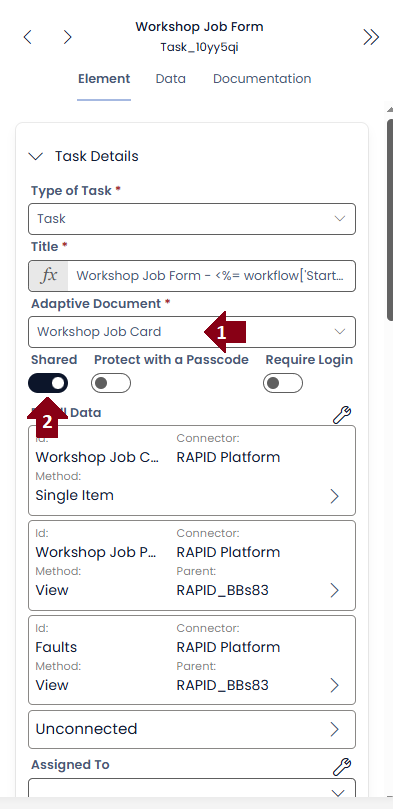
- First an adaptive document is selected, this will be the form presented
- The Shared option is toggled on, this tells the Workflow Engine to share this task as a Public Form
When the process visits the Task it will make a new Task item as usual. With Shared enabled, it will also generate a new Public Form. You can find the ID of the form on the task itself under the generated_form_url key or on the Task itself.
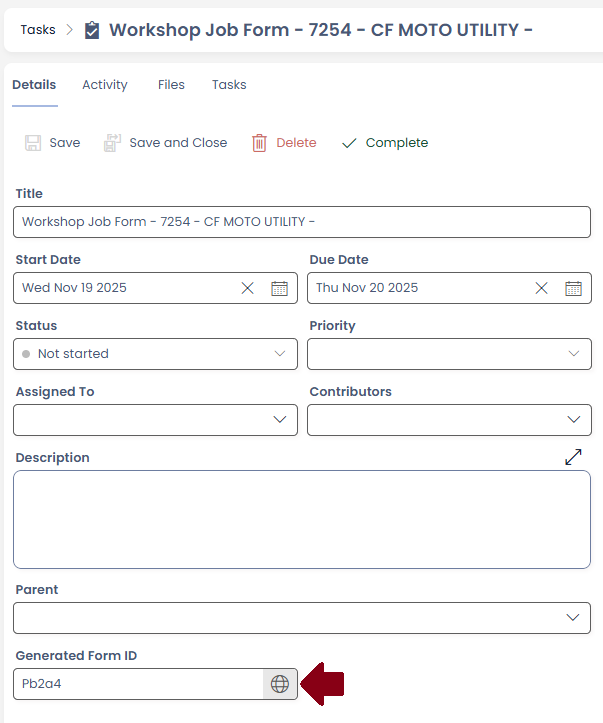
Public Form Lifecycle
Forms created from tasks will persist until the task is completed, or if the Expiry Date is populated until that date. When a User submits a public form from a task, it will naturally complete that task allowing Workflow processes to move on. This also has the effect of someone accidentally returning to an old form will not be able to submit it.
Passcodes
Sometimes you want to ensure the Public Form is only submitted by a specific 2nd party. When you enable the 'Protect with a Passcode' toggle, the task will generate a second passcode that needs to be entered to unlock the form.
Authenticated Forms
While Public form urls are scrambled, they are still sitting on the public internet. When enabling the Require Login toggle, the generated form will only be accessible to Users within the current site. This will require them to login, just like they do to the Rapid site normally.